On this page
If your Channels page shows Connect with Meta on the WhatsApp card, you do not need any of this: connect your WhatsApp number in a few minutes instead. This page is for a number that already runs through a Meta app of your own, or that Connect with Meta cannot reach — and for workspaces where the button is not switched on yet.
This is the hardest step in the product, and almost all of it happens in Meta's console rather than ours. Set aside an hour the first time.
You bring your own WhatsApp number and your own Meta app. We never resell you a number, which means the account, the number and the conversations stay yours — and it means the setup below is yours to do once.
What you are collecting
Four values. Everything on this page exists to produce them.
| Value | Where it comes from |
|---|---|
| Permanent access token | A system user in your business portfolio |
| Phone number ID | WhatsApp → API Setup |
| App secret | App settings → Basic |
| WhatsApp Business Account ID | WhatsApp → API Setup |

The route
Each step has its own article; this page is the spine.
- Create your Meta app and business portfolio. A developer account, a business portfolio, and an app with WhatsApp added to it.
- Add and verify your phone number. Either a test number to try the platform, or your own number for real customers.
- Generate a permanent token. A system user token with three specific permissions. This is where most setups go wrong — read it even if you think you have a token already.
- Paste the four values into Configuration → Channels, on the Connect WhatsApp card, and save. If the card leads with Connect with Meta, press Use your own Meta app at the foot of the card to open the form.
Configuration → Channels carries a connect card for each of the three, and the credentials guide for each beside it. Instagram and Messenger have their own articles (Instagram, Messenger); everything below is WhatsApp.
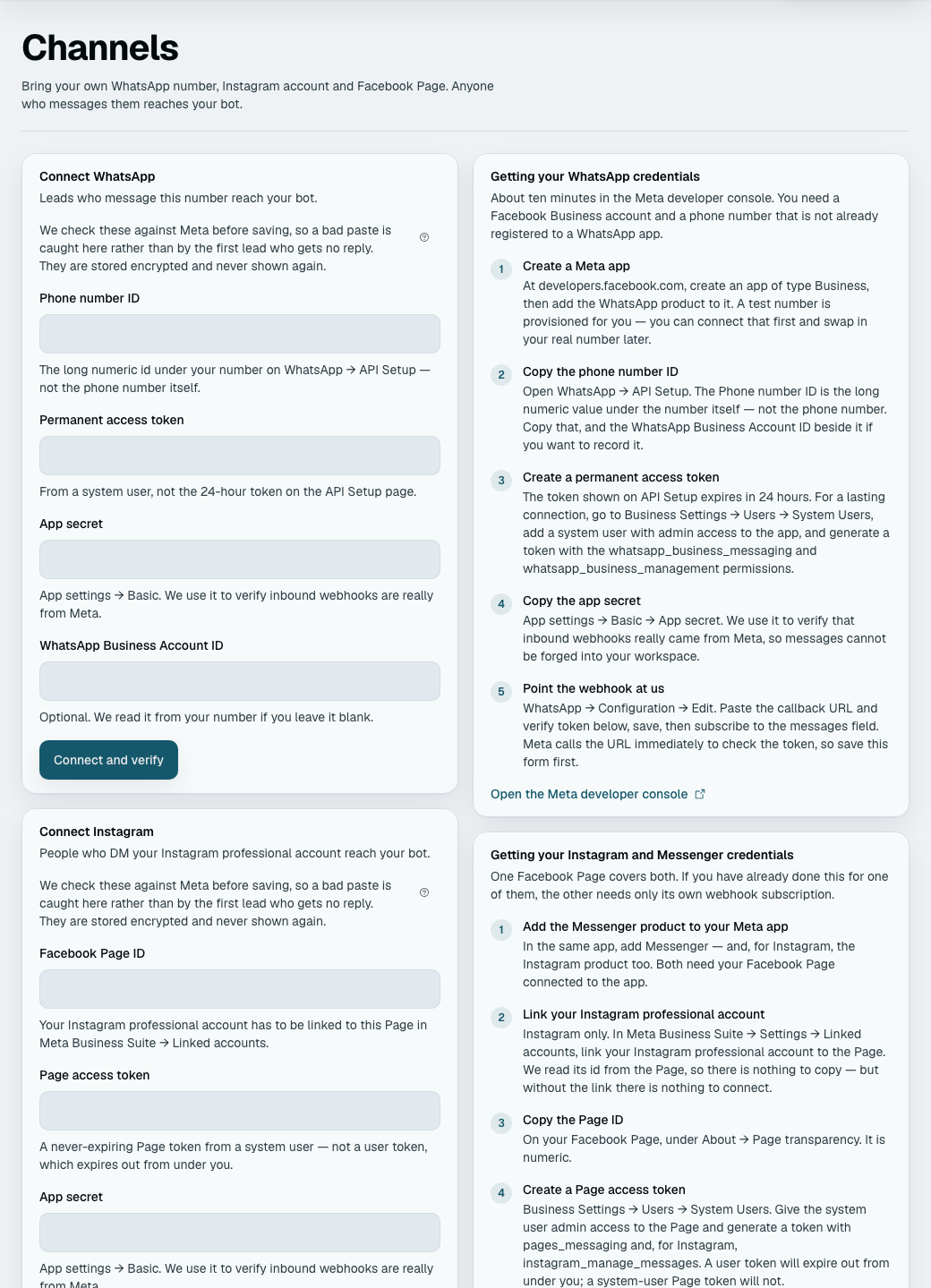
What happens when you press save
We do four things, in this order, and stop at the first failure:
- Verify the credentials against Meta — before storing anything. Saving first would leave you looking at a "connected" badge over credentials that have never worked, and the first sign of trouble would be a customer getting no reply. If Meta rejects them, nothing is stored and you get a message saying what to fix (WhatsApp error messages, decoded).
- Check the WhatsApp Business Account ID holds the number. A business often has two accounts, a test one and a real one, side by side. Subscribing the wrong one would leave this number receiving nothing, so an account that does not list the number is refused with a message saying so.
- Store the credentials encrypted. The token is never shown again, in full, anywhere: the screen shows a masked tail, and the app secret is not echoed at all, not even masked.
- Subscribe this app to your account's webhooks. This is the step Meta's own documentation never tells you that you need, and Webhooks: why messages arrive, and why they sometimes don't is about it. This is why the account ID is required. If the subscription fails, the save still succeeds, because your number can send, and the result says plainly that inbound messages may not reach us.
Then test it, in both directions
Outbound: press Send test message and give it a number you can read. A token that reads your phone number can still be missing the permission to send from it, so this is a different proof from the one above.
Inbound: message your business number from a personal phone and watch it appear in the Inbox. Do this before you tell a customer about the number. Sending works far more often than receiving does, and a connection that looks complete but receives nothing is the exact failure the webhook article exists for.
While your business is unverified
Meta restricts unverified businesses: a small number of phone numbers, and — for an app in development mode — delivery only to numbers you have added as test recipients. A message to anyone else is rejected with a specific error rather than silently dropped (code 131030).
Plan for that: try the platform on a test number, then start business verification early, because it is the long pole and it runs on Meta's schedule rather than yours.
Disconnecting
An owner can disconnect from Configuration → Channels. It stops inbound routing; it does not delete your conversation history. What your business has already been told stays.