On this page
When your bot offers a lead a time (your next step), it offers times from the hosts' diaries: the team members who take the call. A host's diary is made of three things, and this page is about the first two:
- Weekly hours, the hours you are happy to take calls in each day of the week.
- Days off, the days that week does not cover.
- Bookings already made, which the bot reads for itself and never offers twice.
Everyone has their own hours, set by them, so the people who take calls decide when. An owner or admin can set anyone's. A call has to fit inside a range: with 20-minute calls and hours that end at 5:00, the last time offered is 4:30, because times start on the quarter hour.
Setting your weekly hours
Open Your account → Your hours. Every role has this tab, an agent included.
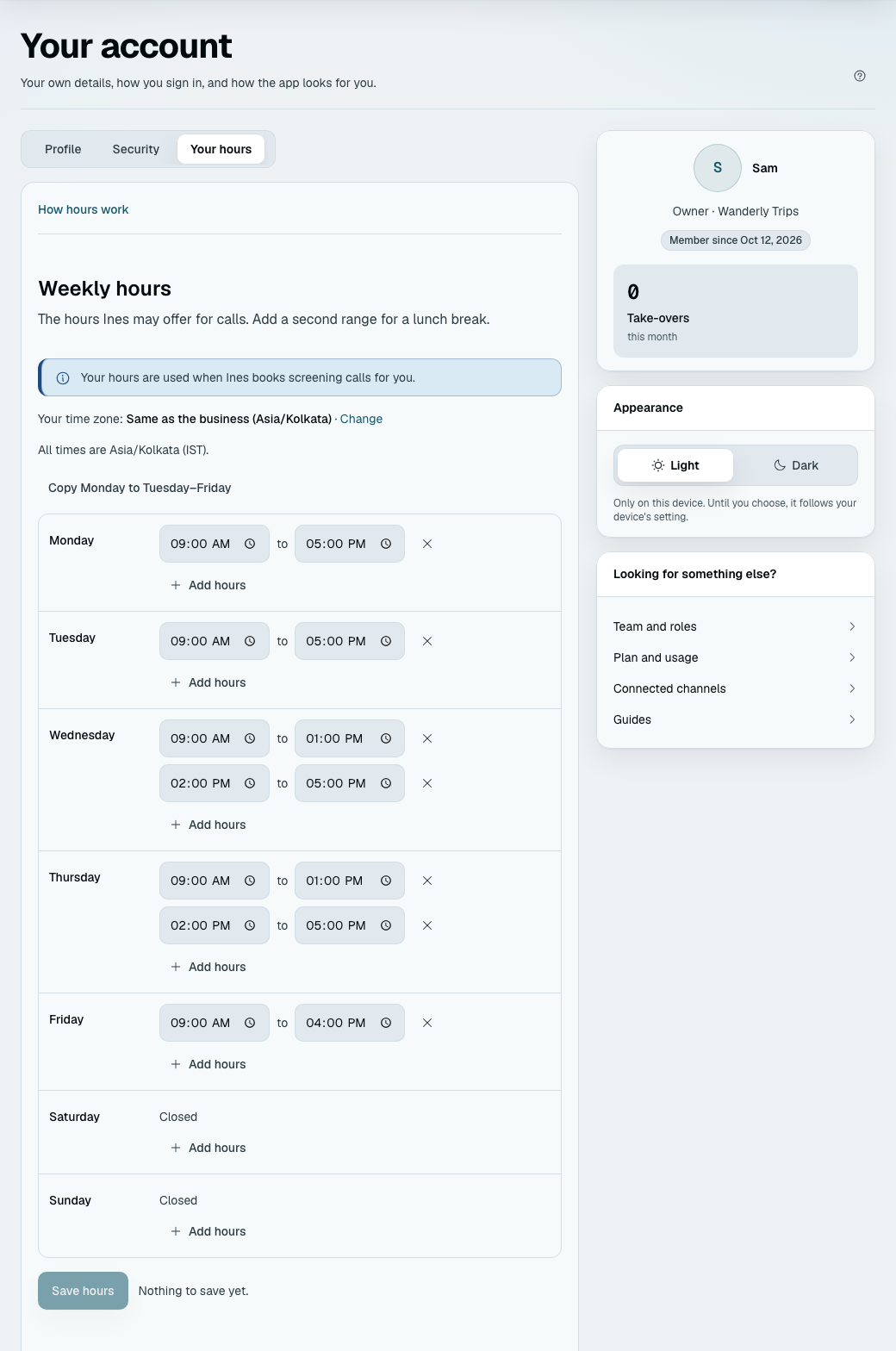
- The week is seven rows, Monday first. A day with no hours reads Closed.
- Add hours opens a closed day at 9:00 to 17:00, or adds another range that starts an hour after the last one ends. A day can have up to four ranges, so a lunch break is two ranges.
- The cross beside a range removes it. Removing the last one closes the day.
- Copy Monday to Tuesday–Friday saves typing a working week.
- Times are in 15-minute steps, in your time zone, which the page names ("All times are IST (Asia/Kolkata)").
- Press Save hours. Nothing is saved until you do. If a day is wrong, the page marks it in red and says why: "Each range must end after it starts. For past midnight, use two days." or "These ranges overlap."
If you have no hours saved, the page starts you from the business's opening hours, marked "From your opening hours — check them", or from Monday to Friday, 9 to 5, marked "Suggested — check these". That is only a starting point: it is not saved, and your bot does not use it, until you press Save hours.
A line at the top says whether you host: "Your hours are used when (your assistant) books screening calls for you", or "You're not taking bookings — an admin can add you on Next step", or, when booking is not set up, "Booking isn't set up yet".
Days off
Days off is below the week. Add a day when you will not be available, or will be available for fewer hours than usual.
- Whole day off: the bot offers no time on that date.
- Only some hours: on that date you take calls only between the two times you give. This replaces that day's usual hours, so it can be shorter or longer than a normal day. It does not mean "off during these hours".
- A note is for your team only ("Dentist"). A lead never sees it.
- A day off is added at once, with a toast and Undo. Delete one with its Delete button.
- You can add a date from today up to a year ahead, one entry per date, and up to 60 coming up. The page tells you which of these you hit.
Your own time zone
Under the week, the page says "Same as the business (Asia/Kolkata)." Leave that if you work where the business is. Change it only if you work somewhere else: pick your zone, and these hours are then in that zone and turned into the business's time for leads. A host in London and a business in Mumbai is the usual reason.
Daylight saving never moves a booked time. Each hour is turned into a moment on its own date, so a 9:00 start stays 9:00 on your clock through a clock change.
What "No hours yet" means
A member who hosts the call but has no weekly hours shows No hours yet on Team, and a card on your bot's to-do says "Asha has no hours yet" as soon as booking is on.
- The bot skips that person. It offers the other hosts' times. Nothing is invented.
- If nobody has hours, the bot offers no times, and a qualified lead reaches your team as it did before booking. Next step says "Booking is on, but nothing can be booked."
- It is fixed by adding hours, on Your account (by the member) or on Team (by an admin), or in the form on Next step.
A deactivated member is skipped too.
Who can change whose hours
| Who | Can change |
|---|---|
| Any member | Their own hours, days off and time zone, on Your account → Your hours |
| An admin or the owner | Anyone's, on Admin → Team: each active member has an Hours button, which opens a panel with the same editor, and a column that reads "Hours set" or "No hours yet" |
An agent has no Hours button on Team, because the hours of other members are an admin's to set.
What your hours do not know about
The bot knows your weekly hours, your days off and the calls it or your team booked. It does not read your own calendar, so a meeting you made outside this product is not blocked. Add a day off or shorter hours for it. The notice, how far ahead and the gap between calls are set once for everybody, on Next step.
Your bot also keeps the gap you set between calls, so back-to-back bookings are not offered.
If something goes wrong
| What you see | What it means |
|---|---|
| "Choose a time zone for these hours before you save." | Neither you nor the business has a zone. Choose one |
| "Those hours weren't accepted." | A day's times are wrong. Check each day marked red |
| "That day already has a day off or special hours." | One entry per date. Delete the old one first |
| "Choose a day from today to a year ahead." | A day off cannot be in the past or more than a year out |
| You saved hours and the bot offers none of them | Check you are ticked as a host on Next step, and the notice and days ahead under More options |