On this page
Matching on its own is for your team: a lead finishes the intake, your team sees a ranked shortlist, and a person decides what to send. Showing options lets your bot do that last step in the chat: once a lead has answered your questions, it shows them the best few of your own records, the lead taps the one they like, and your team is told which.
It is off until you say yes. Nothing here changes how your bot behaves until you turn it on, and it never shows a sample record.
Turning it on
You are asked once, and the answer is yours, because showing options means a piece of information about your business leaves it. There are two doors to the same switch:
- The to-do card "Show leads the (your records) that fit?" on the dashboard (Your bot's to-do). It lists your record fields with the ones your template suggests already ticked and marked Suggested. Yes, show them saves the ticks and turns options on in one go; Don't show options leaves them off. The card only appears once you have a real record.
- Matching, the Offering section (Matching dimensions and weights). A switch, "Show leads the options that fit them", and two numbers: Only options that fit at least this well (30 to 95, 60 to begin with) and How many to show (1 to 3, 3 to begin with). The switch stays off, with the reason beside it, while you only have sample records.
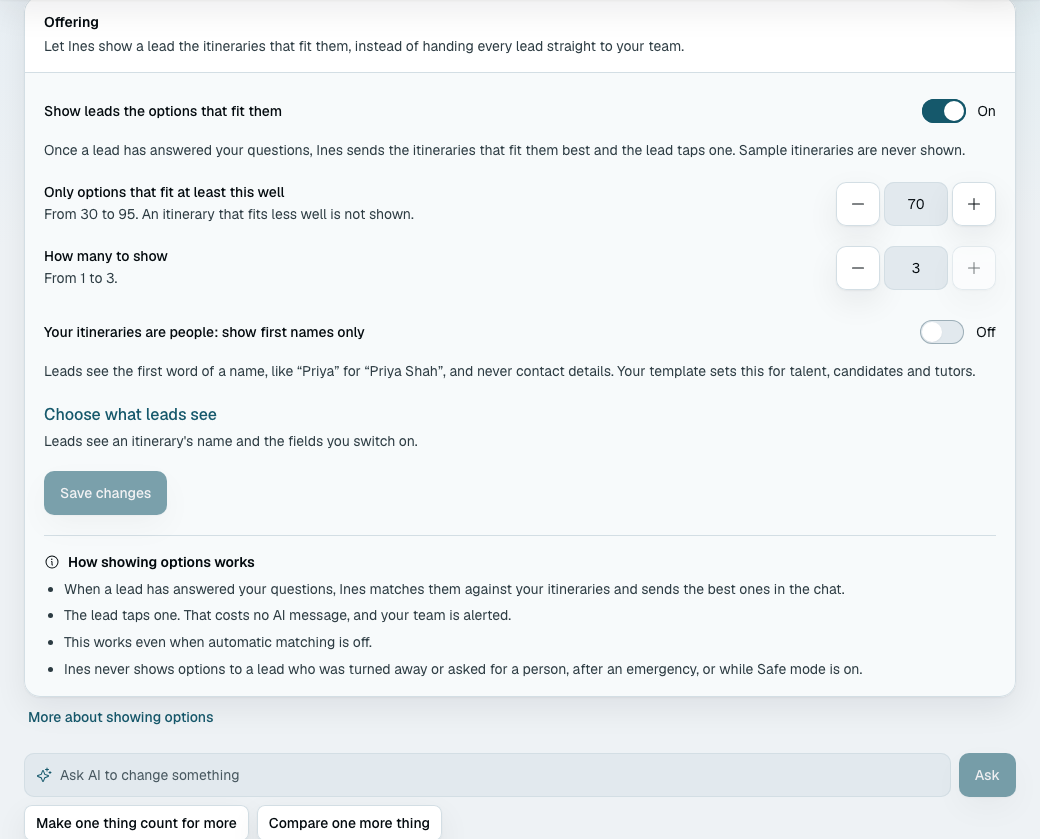
Either way, the bot works through the same steps below. Turning options off puts everything back: a lead who qualifies is handed to your team as before.
What the lead sees
The lead is shown the best records that fit them (up to three, or fewer if you set a lower count), each with a one-line pitch. How it looks depends on the channel, and the words around it come in the lead's language.
| Channel | What arrives | How the lead answers |
|---|---|---|
| A message with an introduction and a See options button. The button opens a list: one row per record with its name and pitch, and a last row, None of these | Taps a row | |
| Messenger and Instagram | The options as numbered text, with one quick-reply button under it for each record and one for None of these | Taps a button, or replies with the number |
| Anywhere else, and whenever a channel will not take the structured form | The same numbered text | Replies with the number |
(These are described rather than pictured: the list and the buttons are drawn by WhatsApp, Messenger and Instagram themselves, so what a lead sees varies a little with their app.)
If your records have photos, the lead sees them too; see Pictures below.
Every options message also holds its full plain text, so it reads the same in your inbox, in search and in the history your bot sees. The text looks like this:
Here are the trips I think fit you best:

1. Amalfi Coast Slow Roads — private guide, small group, September
Region: Campania · Nights: 7 · Price per person: ₹95,000

2. Kerala Backwaters — a quiet week on a houseboat
Region: Kerala · Nights: 5 · Price per person: ₹58,000

Tap or reply with a number to choose one.
A record's name is on the first line of its entry; under it, on one line, only the fields you switched
on, joined with " · " (a column of labelled lines under every option read like a form).
Links you made visible (a brochure, a listing) are written out in full and only if they begin with
https://. A long text field is cut at about 120 characters.
When a message is too long for the channel, the least useful parts go first: extra links, then details after the second, then the end of the text. The last line, how to answer, is kept.
If two or more of the options in one message have the same name (compared without regard to capital letters), a detail is put after each name so the lead can choose: "Sicily trip ($1,890)" and "Sicily trip ($2,100)". The detail comes from the visible field whose values tell those options apart best; if two fields do equally well, the one that comes first in your field order. It is only ever a field you switched on for leads. If the records show the same on every visible field, nothing is added (give them different names, or switch on a field that differs). Names and details are always cut on whole characters, never through an emoji.
Pictures
A lead is shown a photo of what they are being offered. The photo comes from your records' Image field (Adding photos to your records): for each option, the first photo of the first Image field you let leads see, which is the field's cover. A record with no photo, or with its photo field switched off, is shown as text only, as before.
| Channel | What arrives |
|---|---|
| WhatsApp, two or three options | One picture for each option, in order, before the list, each captioned with its number and name ("1. Amalfi Coast Slow Roads"). At most three. Then the message with the See options list |
| WhatsApp, one option | One message with the picture on top and two buttons, Choose this and None of these. A WhatsApp list cannot show a picture, which is why a single option comes as buttons |
| Messenger and Instagram | A picture for each option, then the numbered text with a quick reply for each record and for None of these |
| Anywhere else | Text only |
- A picture that cannot be sent never loses the options. If a channel refuses a photo, that picture is skipped and the rest of the message still goes. If WhatsApp refuses the picture of a single option, that option goes as the plain list instead.
- Only photos you let out. A photo is sent only while its field has Lead can see switched on, checked when the message is sent. Switch the field off and the next message leaves the photos out, even for options worked out earlier.
- Photos on request. A lead who asks to see a photo of one of the options they are choosing from ("can I see the second one?") is sent that option's photos, at most three, right after the bot's reply. If that record has no photo they can see, the bot says there is no photo of that one here and that it will ask the team.
- Nothing permanent. The address a channel fetches a picture from is made at the moment of sending, works for an hour and is never stored on the message. Your own inbox draws the pictures through its own short-lived links.
Choosing what a lead may see
A lead sees a record's name, and the fields you switch on. Nothing else. That is the whole rule, and it holds in the options message, in the pitch, in anything the bot says about an option afterwards, and in the first reply to a question about one.
- The name is always shown. It is what the lead taps.
- Every other field starts hidden. Switch one on at Business setup, on your records' fields page ("Trip fields", "Listing fields", in your own words), in the Lead can see column, or on the to-do card. Where, how long, the price and a brochure usually help a lead choose; internal notes, cost prices and anything you would not say to a customer's face do not.
- Email and phone fields can never be shown. They have no switch, and the product refuses the request if one is made some other way.
- Your template suggests, you decide. The fields it marks Suggested are ticked for you on the card, and nothing is shown until you press Yes. If you ever turn a field off, the next options message leaves it out, even for a match that was worked out earlier.
- Photos are a field too. An Image field has the same Lead can see switch, and a new one starts on when options are on (you confirm by saving the field). See Pictures.
- Prices read as prices. A price stored in cents is shown in your currency ("₹95,000"), never as a raw number.
- Records that are people. If your records are talent, candidates, tutors or practitioners, tick Show first names only on the card, or Your (records) are people: show first names only on Matching. A lead then sees "Priya", not "Priya Shah", and a title such as "Dr." is skipped. Your template sets this for you where it fits. The AI that fits your setup to your business can turn it on but never off, and Ask AI cannot change it. It is on top of the visible fields, so it never adds a surname, an email or a number.
You can read what a lead will see before any lead does: open the playground and play a lead through to the end.
The pitch
Each option carries one short line (72 characters at most) written for this lead. The AI that writes it is given only the visible fields and what the lead told the bot. It never sees your hidden fields or internal notes. The line is checked by code before it goes out, and again when the options are sent. It is replaced by the first two visible fields joined plainly if it:
- is empty or longer than 72 characters;
- repeats words, a name or a number from a hidden field, however it is spelled or written;
- names a figure no visible field holds, or the name of another record;
- promises something your records do not, or says whether a record fits the lead's budget.
The writer is told to stay on what is written. A record with three visible details or fewer is marked as thin: the line stays short and only ties those details to what the lead asked for. It may not add colour of its own, such as an activity, a mood or the kind of person the record is "for". If nothing ties, there is no line and the visible fields are shown plainly. If a pitch keeps sounding generic, the fix is to switch on one more field the lead may read.
The pitch is written during the matching run, so it uses no extra AI reply. When only the name is visible, there is no pitch.
When options are shown
When a lead qualifies and options are on, the bot does not close the chat. It says a short line such as "Give me a moment while I pull together the trips that fit you" and asks nothing else, including the next-step question (The next step). Matching runs, even if you switched automatic matching off, and a moment later the options arrive.
- Which records: those that fit at least as well as your minimum, up to your count, that are active and available, were not rejected, and are real. A sample record, or a record the playground made up, is never shown.
- The order: best fit first. Records that fit equally well come in the order of their names, so running it again shows the same options.
- None fit: the lead is told the team will put options together and be in touch, and the lead reaches your team as qualified, as before. The same happens when your month's matching runs are used up.
- The 24-hour window has closed (a slow run): nothing is sent. The lead reaches your team, and the matches wait for you to send them by hand (below).
- A lead held for your team is not shown options automatically. You decide first, and can send options from the review card.
The bot never shows options to a lead who was turned away, to a conversation that is paused or that a person took over, to a lead who is complaining, asking for support, abusive, may be a child, asked for a person or sounds frustrated, while an emergency hold stands (only a person lifts it), while Safe mode is on, or to a lead who said no to the next step. Those leads reach your team exactly as they always did.
What happens on each kind of answer
The lead chooses one (a tap, or just its number). This costs no AI reply and nothing waits: the choice is recorded by code, the bot answers with a fixed line ("Lovely choice — Amalfi Coast Slow Roads. The team will confirm the details with you."), and the lead moves to your team under Needs you as Chose an option, with the alert naming the record. The match moves to Reviewed. A choice counts as a yes to the next step. The bot promises no time.
If booking is on and set to offer times when a lead qualifies, a message of times (or your booking page) follows the confirmation (when times are offered). The same goes for a lead told the team will put options together. The lead still appears under Needs you.
If a person has the conversation when the lead taps, the choice is still recorded and your team is told, but the bot says nothing, so you can answer in your own voice.
The lead types something instead. The bot reads what they mean:
| What they say | What the bot does |
|---|---|
| Which one they want ("the second", "the Kerala one") | The same as a tap |
| A question about an option | Answers it from the visible fields only. Anything else it says it will check with the team, and the question is kept for you |
| A request to see a photo of one | Replies, then sends that option's photos (Pictures) |
| They are not sure | A gentle nudge towards one, using the reason they gave you earlier |
| None suits them | See below |
A bare number ("2") counts as a choice only while the bot is waiting for one. If the choice cannot be recorded (that option was already chosen, say), the bot asks which one they would like.
None of these. The first time, with no reason given, the bot asks once what would make one right ("No problem. What would make one of them right for you?"). After that, with or without a reason (the price, the dates, the place, the size, the style or their own words), it can try one more set (next section). If it cannot, the lead reaches you as No option chosen, with the reason beside it, and is told the team will put together options made for them. When the lead typed their answer, that sentence is one short line written to give their reason back ("Those all run over what you'd hoped to spend, so I'll ask the team what they can put together closer to that."). It follows the same rules as every reply: no price of its own, no promise of a discount or a result, no time, no question. If the line breaks one, or the model is unavailable, the lead gets the fixed sentence instead. A tap on None of these always gets the fixed sentence, because a tap calls no model. A lead a person has taken over, or who is complaining or frustrated, is handed over at once and not offered another set.
The lead goes quiet. After the usual wait the bot sends one nudge ("Did any of these catch your eye?"), one only, however many follow-ups you allow elsewhere. If there is still no reply, or the messaging window has closed, the lead reaches you as No option chosen with "No reply to the options", instead of waiting as an unresponsive lead.
The second round
A lead who says none fit can be shown one more set. If they gave no reason, the bot first asks once what would make one right. The bot then looks again, leaving out what it already showed, and says "Let me look for something that suits you better."; the new set opens with "Here are some other (records) that might suit you better".
-
It only says that when it has something to show. The bot first checks that a record it has not shown still passes the lead's must-match rules and reaches your Only options that fit at least this well score. If none does, the lead goes to your team at once instead of being told the bot is looking. (It checks on the answers already given and without a model, so a record can still fall away in the run that follows; the lead then goes to your team.)
-
The reason steers the choice. Whatever the lead said was missing (the place, the dates, the size, the style, or their own words) is read by the AI, which puts first the records that answer it from among the next best fits (a few more than it will show). It only reorders: it never hides a record that fits. With no reason given, the next best fits are shown in score order.
-
If the reason was price, it shows only records that are cheaper than the cheapest it showed the first time. The price is read from your first matching field that holds an amount of money. If none is cheaper it does not pretend one is: the lead goes to your team at once, with the price as the reason, and may be told that the cheapest one they saw was already the lowest price you have ("That one was already the lowest-priced trip we have; I'll ask the team if there's any flexibility."). It says that only when it is true, and never of all the options.
-
It never makes a third set. If the second set does not suit, the lead hears that the team will reach out with options made for them, and reaches you as No option chosen.
-
It uses one more matching run, counted as any run is. If the allowance is spent, or nothing else fits, or the second look finds nothing, the lead goes to your team.
-
Options your team sends by hand do not count as a round.
Your team can still send more by hand, as often as they like.
Recommending while the conversation is still going
The bot does not always wait for the end. Once a lead has answered at least two of the questions you match on, and options are on, the bot may add one short sentence beside its next question: that a record (or two) sounds like a good fit, naming it and what you made visible about it ("from what you've said, our Spiti trip sounds right — 6 nights, ₹58,000"). It is a peek, not an options message: the lead is not asked to choose, and the conversation carries on with the question.
- At most twice in one enquiry, and never within three bot replies of the last one. It only ever rides along with a question: the bot never sends a peek as a message of its own. It never names a record it already named to that lead.
- While a must-know question is still open, only when the lead asked what you have.
- Only records that pass the lead's must-match rules and reach your Only options that fit at least this well score.
- Only when the bot is allowed to sell to that lead and would be allowed to show them options: never for a lead turned away, held, complaining or asking for support, or while Safe mode is on.
- It uses plain scoring on the answers so far. It needs no extra AI reply, creates no match and costs nothing to your allowance beyond the reply itself. Comparisons you set to be judged by the AI are left out, so the peek only uses the ones the product can work out itself.
- The same visibility rule holds: name and the fields you switched on, first names for people.
Sending options by hand
Anyone on your team who can reply in the inbox can send options, whether or not you turned the setting on.
- From the match panel, on a lead's page or beside a conversation: tick up to three matches (the best ones not yet sent are ticked for you) and press Send to lead. The lead gets the same kind of message as above, with the same pictures and the same rule about what they may see. A match that cannot be shown (a sample record, an inactive or unavailable one, a rejected match, or the one the lead chose) has no tick box.
- From a review card (a lead held for your decision): Send options opens a short list. It does not accept the lead; the review stays open.
- Only inside the 24-hour window. The button is off outside it, with the reason ("They last wrote 26 hours ago — you can send when they write again"). WhatsApp, Messenger and Instagram do not allow a message to a lead who has not written for a day.
- You can send again, and a match you already sent shows Sent to lead with the time, but not the option the lead already chose.
- If a person has the conversation and the lead taps one of the options you sent, the choice is recorded and you are told. The bot does not reply.
Each send leaves a row in the Activity log naming who sent it.
What your team sees
- In the thread, the options as a card: the intro, a row per option with the pitch and details the lead saw (with a small picture beside each option that had one), and a note of how it was shown (a WhatsApp list, quick replies). A tap shows as "Tapped: (the option)". If an options message was not delivered, the card says so and why.
- On the lead's page: an Options shown card with every set sent, Lead chose this on the chosen one, and a Chosen option card above the matches. Each match marks Sent to lead.
- In Needs you: Chose an option and No option chosen (the list).
- On Analytics, an Options tile on plans with advanced analytics (Reading your analytics).
What it will never do
- It shows a lead nothing about a record but its name and the fields you switched on. Never an email or phone, never a field you left off, never a sample.
- It does not offer options to a lead the product would not sell to.
- It records a choice only for an option that this lead was shown, in this enquiry, that was not already chosen. A made-up or copied button from somewhere else is treated as plain text.
- It does not say a record is cheaper, closer or better than another unless a visible field says so.
- It is checked by the same code as every other reply (the check on every reply): a price or name that is not on the options it showed is not sent.
Related
- Which fields exist and what they hold: Field and rule types.
- Giving your records photos: Adding photos to your records.
- How records are scored and ranked: Matching dimensions and weights.
- What the bot says and when it stops: How the bot builds its conversation.
- Trying it before a lead does: Trying your bot in the playground.